When teams say they need a screenshot tool, they often mean they need a faster way to explain something. A developer needs to show a bug. A designer needs to mark a spacing issue. A support specialist needs to point out the exact button a customer should click. A writer needs a clean image for documentation.
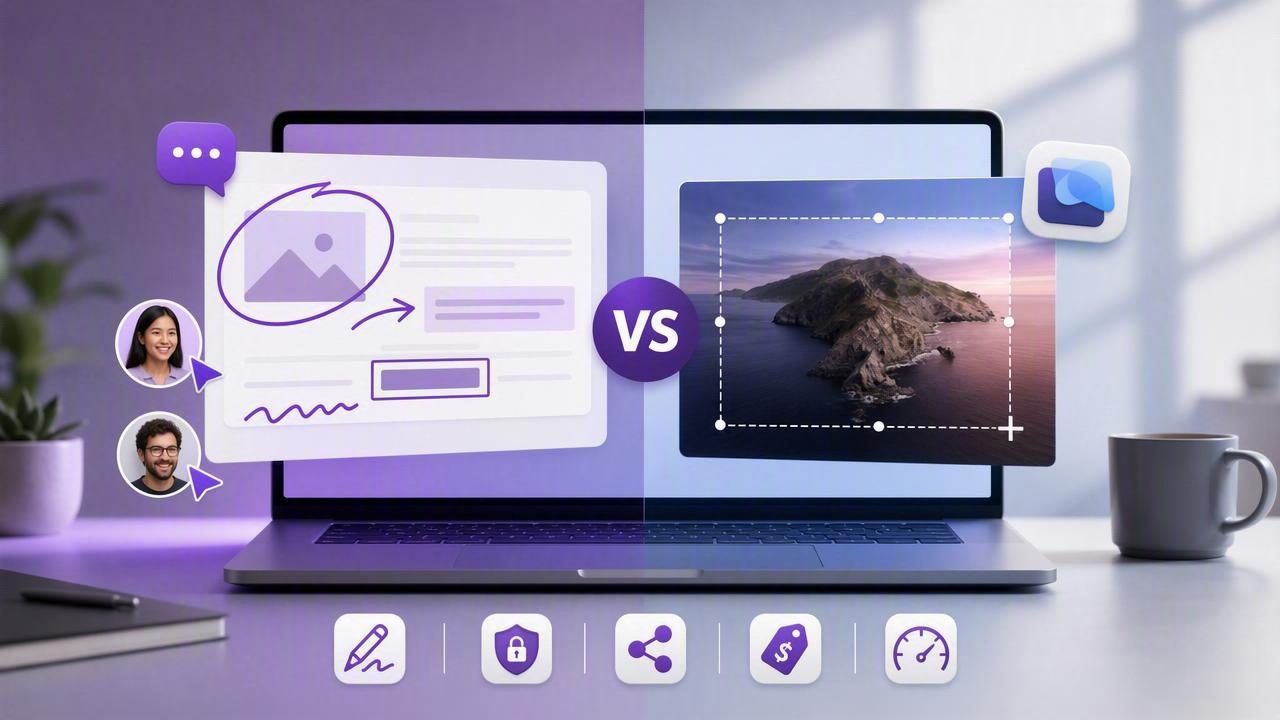
That is why the real comparison is not simply visual feedback tool vs CleanShot X. It is a comparison between workflows: a focused capture-and-annotate workflow versus a broader screen-capture utility with many recording, scrolling, sharing, and productivity features.
Both approaches can be useful on a Mac. The better choice depends on what happens after you press the screenshot shortcut. Do you primarily need to communicate a visual point quickly, or do you need an expansive capture suite for video, scrolling windows, screen recording, and cloud-based delivery?
This guide breaks down the differences so you can choose a Mac screenshot workflow that matches your work without paying for features you rarely use.
What Is a Visual Feedback Tool?
A visual feedback tool is built around one practical job: turn what is on screen into a clear, actionable explanation. Its core workflow is usually straightforward:
- Capture a region or the full display.
- Annotate the image with arrows, shapes, text, blur, or numbered steps.
- Copy, save, drag, or share the finished screenshot where it needs to go.
This sounds simple, but it solves a persistent communication problem. Text-only feedback such as “the navigation is misaligned on the right” leaves room for interpretation. A screenshot with a red arrow, a box around the affected element, and a short note removes ambiguity.
For many people, speed matters more than an enormous feature list. A focused visual feedback tool reduces decisions between capture and delivery. Instead of opening an editor, searching for markup controls, exporting, renaming a file, and uploading it, the user can produce a finished visual explanation in a few actions.
Where CleanShot X Takes a Different Approach
CleanShot X is a well-known Mac capture utility designed for users who want a wide range of screenshot and screen-recording capabilities in one application. Alongside standard region and full-screen screenshots, its toolkit includes options such as screen recording, scrolling capture, capture history, desktop icon hiding, capture presets, and sharing features.
That breadth is valuable for users who regularly create product demos, record walkthroughs, capture long web pages, or need advanced capture controls. It can consolidate several separate utilities into one app.
However, a larger toolkit can also be more than some users need. If your daily task is to capture a section of an interface, add three annotations, and paste the image into Slack, Linear, Notion, an email, or a document, a streamlined visual feedback workflow may feel faster and less distracting.
Feature Comparison: Visual Feedback Tool vs CleanShot X
| Workflow need | Focused visual feedback tool | CleanShot X |
|---|---|---|
| Region and full-display capture | Usually central to the experience | Available, with extensive capture options |
| Arrows, shapes, text, and blur | Designed for fast, clear markup | Available as part of a broader toolkit |
| Numbered step markers | Especially useful for instructions and QA | May be part of annotation workflows depending on setup |
| Screen recording | Often intentionally excluded | A major capability |
| Scrolling screenshots | Not always included | Common reason to choose it |
| Capture history | May prioritize a lightweight local history | Offers broader capture-management features |
| Cloud sharing | Can be optional and user-controlled | Available through sharing-oriented workflows |
| Best fit | Fast visual feedback and screenshot annotation | Power users who need an all-in-one capture suite |
The table does not identify a universal winner. It identifies a trade-off. More features can mean more flexibility; fewer, better-focused features can mean a shorter path to a finished screenshot.
Why Annotation Speed Matters for Visual Feedback
A screenshot without annotation often forces the recipient to hunt for the important detail. In a busy interface, the issue may occupy only a few pixels. Good annotation directs attention immediately.
For example, consider a bug report for a checkout form. A useful screenshot might include:
- An arrow pointing to the broken field.
- A rectangle framing the surrounding component.
- A text label explaining the expected behavior.
- A blurred area protecting a customer name or account number.
- A numbered marker showing the order of actions that produced the problem.
These elements transform an image from evidence into instruction. This is particularly helpful in asynchronous teams, where a screenshot may be read hours later by someone without the original context.
The best feedback screenshot answers three questions at once: What is wrong? Where is it? What should happen instead?
If your work revolves around those questions, evaluate annotation speed before comparing advanced recording or sharing features.
Privacy: Local-First Capture vs Cloud-Connected Workflows
Privacy is another meaningful factor in a screenshot app comparison. Screenshots can contain customer records, internal dashboards, financial data, unreleased designs, API tokens, or private conversations. Even when the image itself is harmless, automatic uploads can create uncertainty about where it is stored and who can access it.
A local-first screenshot workflow keeps captures and recent history on the Mac by default. This is useful for people working with sensitive material, regulated data, client projects, or internal product information. It also keeps the basic workflow functional without requiring an account or an internet connection.
Cloud sharing still has a place. Sending a link can be convenient when a file is too large for chat or when multiple stakeholders need access. The important distinction is whether sharing is intentional. Many users prefer an option to share through their own storage account, rather than having every capture automatically routed through a third-party service.
Before choosing any screenshot tool, check these details:
- Are screenshots uploaded automatically or only when you choose to share?
- Can you keep capture history entirely local?
- Does the app require an account for basic capture and annotation?
- Can you delete local history easily?
- Which cloud provider receives shared images, if any?
Pricing and Value: Buy for Your Actual Workflow
Screenshot software pricing is not only about the purchase price. It is about the cost of complexity, recurring subscriptions, and features that remain unused. A person who records tutorials every week may receive excellent value from a premium, feature-rich capture app. A product manager who sends annotated screenshots all day may value a smaller app that opens quickly and stays out of the way.
When reviewing one-time Mac software versus subscription-based tools, ask practical questions:
- Will I use screen recording or scrolling capture often enough to justify paying for it?
- Do I need hosted links, or can I paste images directly into my existing tools?
- Is my main bottleneck capture, annotation, file management, or sharing?
- Would a lifetime license better fit my budget and team setup?
A lower price is not automatically better, and a more expensive app is not automatically more productive. The useful purchase is the one that removes the most friction from your most frequent task.
Who Should Choose CleanShot X?
CleanShot X may be a strong fit if you need a broad, polished capture environment. Consider it when you regularly:
- Record screen-based product demos or tutorial videos.
- Create scrolling screenshots of long pages, chats, or documents.
- Need advanced capture presets and desktop-cleanup options.
- Want one application to handle many capture formats.
- Prefer a feature-rich tool and are willing to learn its deeper options.
It is especially compelling for creators, educators, and power users whose work goes beyond static screenshot feedback.
Who Should Choose a Focused Visual Feedback Tool?
A focused screenshot annotation tool is often the better fit for designers, developers, QA testers, technical writers, support teams, consultants, and agency teams that communicate through static images every day. Choose this approach if you mostly need to:
- Capture a specific screen region without extra setup.
- Add arrows, labels, shapes, blur, and numbered steps quickly.
- Copy the finished result into another app immediately.
- Keep screenshots local unless you actively choose to share them.
- Use a simple, predictable workflow with minimal overhead.
The goal is not to replace every kind of screen-capture software. It is to make the everyday task of visual communication feel nearly effortless.
A Simple Test Before You Decide
Try this real-world test with each app you are considering. Capture a current project screen, mark two issues, blur one piece of sensitive information, add a numbered instruction, and send the result to a colleague. Time the process, but also notice the friction.
Did you find the annotation tools immediately? Did the export or sharing method match your normal work? Did you feel confident about where the image was stored? The best screenshot workflow is usually the one you will actually use consistently.
For Mac users who prioritize local captures, direct annotation, and optional sharing through their own Google Drive, Snip Halo is a lightweight option worth considering alongside larger screenshot suites.
