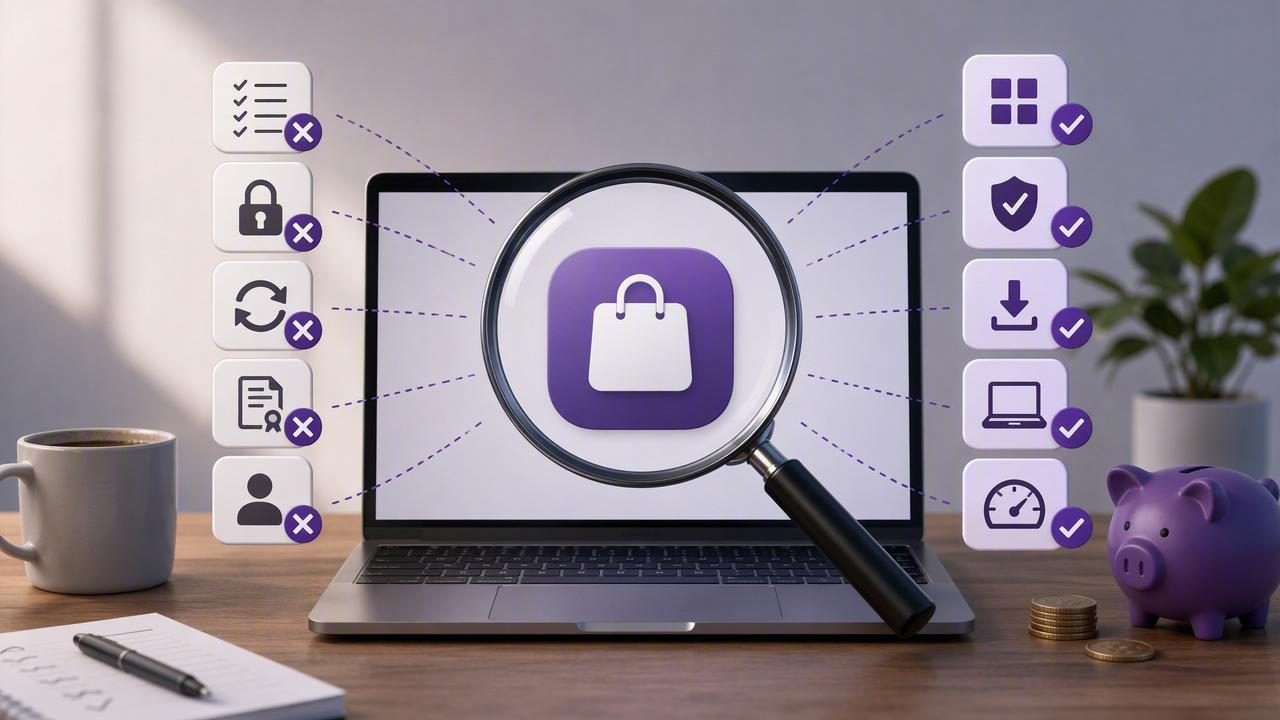
A one-time purchase Mac app can be a refreshing alternative to recurring subscriptions. You pay once, receive a license, and can keep using the software without another monthly charge. For many Mac users, that model feels simpler, more predictable, and easier to justify—especially for focused tools such as screenshot apps, writing utilities, image editors, and productivity software.
However, buying software outright is not automatically a better deal. The value depends on what the app does, how often you use it, how the developer handles updates, and whether the license actually covers the devices and workflows you need. Before purchasing, it helps to understand the most common one time purchase Mac app mistakes to avoid.
This guide explains how to evaluate paid Mac software with confidence, whether you are shopping for a screenshot annotation tool, a file utility, or another everyday macOS app.
Why One-Time Purchase Apps Appeal to Mac Users
Subscription fatigue is real. A small monthly fee may not seem significant, but several subscriptions can add up quickly. A one-time purchase gives you a clearer upfront cost and can be especially appealing for software you expect to use for years.
The best perpetual-license apps often have a focused purpose. Instead of trying to become an entire platform, they solve a specific problem well: capturing a region of your screen, adding blur to private details, organizing files, or converting documents.
- Predictable cost: You know what you will pay before you start using the app.
- Less billing administration: No recurring invoices or cancellation dates to track.
- Long-term value: A useful app can cost less than a subscription over several years.
- Focused workflows: Many independent Mac apps are designed around a clear task rather than endless feature expansion.
Still, a permanent license is only valuable when it matches your real needs. Here is what to check before clicking Buy.
Mistake #1: Assuming “One-Time Purchase” Means Every Future Update
One of the biggest misunderstandings is assuming that a lifetime license includes every future major version. Some developers offer free updates indefinitely. Others include updates for a defined period, such as one year, and charge separately for major upgrades. Both approaches can be reasonable, but the policy should be clearly stated.
Read the license terms before purchasing and look for the distinction between:
- Minor updates: Bug fixes, security improvements, compatibility patches, and small features.
- Major upgrades: Large releases that may introduce redesigned interfaces, new platforms, or substantial functionality.
- macOS compatibility: Whether future versions of macOS are expected to remain supported.
A good question to ask is not, “Will I get every update forever?” Instead, ask, “Will this version remain useful for my workflow, and is the developer’s upgrade policy fair and transparent?”
Mistake #2: Buying Features Instead of Solving a Workflow Problem
Feature lists are persuasive, but they can hide an important truth: you may only use a small portion of what you buy. A complicated app with dozens of tools can be less valuable than a focused app that helps you complete a frequent task in seconds.
For example, someone looking for a Mac screenshot app may think they need scrolling capture, cloud storage, recording, OCR, team collaboration, AI summaries, and advanced image editing. But their actual daily workflow may be much simpler:
- Capture a selected screen region.
- Add an arrow, text label, or numbered step.
- Blur a password, email address, or customer record.
- Copy the result into a bug report, support ticket, or tutorial.
If that is your use case, prioritize speed, clear annotations, and reliable export options—not an oversized suite of features you will never open.
Use a “job to be done” checklist
Before comparing apps, write down the outcome you need. For a screenshot workflow, it might look like this:
- Capture a region without saving cluttered temporary files.
- Use arrows, shapes, text, and blur without opening another editor.
- Create numbered steps for tutorials or QA instructions.
- Copy, drag, save, or share the final image quickly.
- Keep sensitive captures local unless I choose to upload them.
This checklist makes comparison much easier because you can judge each app by what matters rather than by the length of its marketing page.
Mistake #3: Ignoring Privacy and Cloud Defaults
Many modern apps offer cloud syncing, team spaces, share links, and automatic uploads. These features can be useful, but they should not be enabled by default if you regularly capture sensitive information.
Screenshots may contain customer data, internal project plans, invoices, financial numbers, browser tabs, account details, or unreleased designs. Before buying a screenshot tool, find out what happens immediately after capture.
| Question to Ask | Why It Matters |
|---|---|
| Are captures stored locally by default? | Local storage gives you more control over private images. |
| Does the app automatically upload screenshots? | Automatic uploads can create accidental sharing risks. |
| Can I choose my own sharing destination? | You may prefer your own Google Drive or existing storage setup. |
| Is there background recording or screen monitoring? | Some users want a capture tool, not continuous activity tracking. |
| Can I delete capture history easily? | A clear history policy supports better privacy hygiene. |
Privacy is not only about legal language. It is also about sensible defaults. An app should make it obvious when content is leaving your Mac.
Mistake #4: Forgetting to Check License Limits and Device Coverage
A one-time purchase can mean different things depending on the developer. One license may cover one Mac, while another may include two or more personal devices. Some licenses permit commercial use; others are limited to personal use. A low price can become less attractive if you need to purchase multiple licenses for your MacBook, desktop Mac, or work machine.
Check these details before paying:
- How many Macs are included in one license?
- Can you activate the app on both a laptop and desktop?
- Is the license tied to one person, one household, or one business?
- Are commercial and client-work uses permitted?
- What happens when you replace a Mac?
Also consider whether the app is available directly from the developer, through the Mac App Store, or both. Direct purchases may offer different licensing flexibility, while App Store purchases can simplify installation and payment management. Neither is universally better; choose the route that suits your preferences.
Mistake #5: Overlooking the Cost of Missing Features
It is easy to focus only on the sticker price. But a cheaper app may cost more in time if it lacks a feature you need every day. For visual communication, even small missing capabilities can interrupt your workflow.
Imagine needing to explain a software issue to a developer. Without annotation tools, you might capture a screenshot, open Preview or another editor, draw an arrow, add text, save the file, find it again, and then attach it to an issue tracker. That process is manageable once, but repetitive friction adds up.
For screenshot software, consider whether it supports:
- Region capture and full-screen capture.
- Arrows, rectangles, circles, lines, and text.
- Blur or redaction for confidential details.
- Numbered step markers for tutorials and bug reports.
- Copy to clipboard, file saving, and drag-and-drop export.
- A recent-capture history that does not force cloud storage.
The goal is not to pay for the most features. It is to avoid buying an app that requires another app to finish the task.
Mistake #6: Skipping the Trial, Demo, or Refund Policy
App screenshots do not tell you everything. The real test is whether the software feels natural on your Mac. Keyboard shortcuts, capture timing, annotation controls, export behavior, and performance all affect daily use.
If a trial is available, test the app with real work rather than a random screenshot. Capture a product bug, create a short tutorial image, redact private data, and paste the result into the tools you already use. If no trial is offered, review the refund policy and read recent customer feedback from sources beyond the app’s own website.
Practical rule: If an app cannot save you time during a realistic five-minute test, do not assume it will transform your workflow after purchase.
Mistake #7: Comparing Prices Without Comparing Ownership
When evaluating a subscription against a perpetual license, calculate the cost over the period you realistically expect to use the software. Do not assume you will keep every app for five years, but do not compare a one-time fee only to one month of a subscription either.
Estimated ownership cost = purchase price + expected upgrade costs
Subscription cost = monthly price × months of expected use
For instance, a $9 screenshot app that supports two Macs may be excellent value if it handles your capture and annotation needs for years. Conversely, a one-time purchase is not a bargain if you stop using it after a week because the workflow is slow or essential tools are missing.
Value is a combination of price, time saved, privacy fit, device coverage, and ongoing usability.
How to Make a Better Mac App Purchase Decision
Use this short process whenever you evaluate one-time Mac software:
- Define the recurring task you want to improve.
- List the three to five features required to complete that task.
- Check privacy defaults, local storage, and optional sharing behavior.
- Confirm license limits, update policy, and macOS requirements.
- Test with your real workflow or review the refund terms.
- Compare total ownership value, not just the initial price.
A focused tool is often the best choice when it removes friction without collecting more data or demanding another subscription. For Mac users who want local-first screenshot capture, editable annotations, and optional sharing through their own Google Drive, Snip Halo is one example of the kind of straightforward one-time purchase app worth evaluating against this checklist.
Final Takeaway
The smartest way to avoid one time purchase Mac app mistakes is to look beyond the word “lifetime.” Read the license terms, test the workflow, check privacy defaults, and make sure the app solves a real repeated problem. A well-chosen paid Mac app can be a small purchase that saves hours of effort—without adding another recurring bill to your budget.
