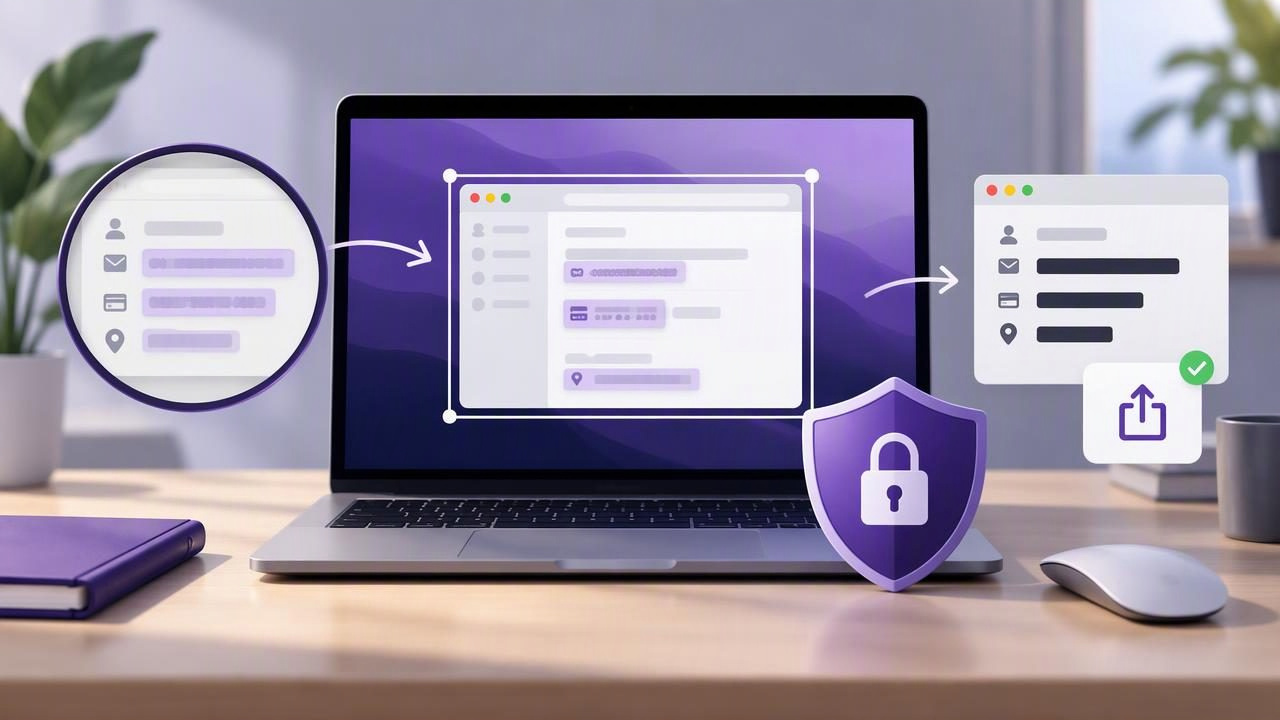
A screenshot can make a bug report, tutorial, or piece of feedback much easier to understand. It can also reveal information you never intended to share: an email address in a menu, a private message behind a window, a customer name in a browser tab, or a file path that identifies a project. Knowing how to protect screenshot privacy means checking the whole image and the way you handle it—not just hiding the most obvious detail.
This guide covers a practical Mac screenshot workflow, from preparing your screen to checking the final file. The goal is to share the context someone needs while keeping unrelated personal, business, and account information out of view.
Start by deciding what the screenshot needs to show
Before capturing, identify the one thing the recipient needs to understand. A support agent may need to see an error message and the relevant controls, but not your entire desktop. A tutorial reader may need a menu and its options, but not your open inbox. A narrower purpose usually leads to a safer, clearer image.
Think about who will receive the screenshot and where it might go next. A private support ticket, a team chat, a public forum, and a published tutorial have different audiences. If an image may be reposted or indexed, treat every visible detail as potentially public.
- Bug report: Show the error, the relevant app, and only the steps needed to reproduce it.
- Work feedback: Include the design or document area being discussed, not unrelated client or team information.
- Public tutorial: Use sample data and remove account names, notifications, and personal bookmarks.
Prepare your Mac before capture
A quick screen check can prevent more privacy problems than editing afterward. Close or move windows that are not relevant, and review the menu bar, Dock, desktop, and browser tabs. Notifications may display message previews, names, or calendar details at the exact moment you capture. Turn on a suitable focus mode or dismiss notifications first.
Use test content instead of real personal or customer data whenever possible. For a walkthrough, create a sample account or replace identifying values with realistic but fictional examples. This is safer than trying to obscure a long list of sensitive details later.
Also consider what appears around the edges of the target window. A full-display capture can include other apps, desktop files, status icons, and open documents. If the recipient only needs one dialog or interface area, choose a region capture or capture the relevant window when your tool supports it. A smaller capture reduces both distraction and exposure.
Choose the right capture area
macOS includes screenshot controls that let you capture a selected portion or the entire display. A region capture is often the better choice for a focused bug report or visual comment. Position the selection so the important context remains clear, but unrelated account details and background content are excluded.
Use a full-screen capture only when the wider layout is genuinely useful—for example, when documenting a problem involving multiple windows or the relationship between an app and a system setting. Before sharing, inspect the whole image at normal size. Details that seemed too small to matter can still be readable when someone zooms in.
Do not assume a window capture is automatically private. The window itself may contain a real name, customer record, browser address, or private conversation. Capture type controls the area, not the sensitivity of its contents.
Redact sensitive information carefully
When you find something that should not be shared, remove it with a reliable redaction method. Cropping is effective when the detail is outside the useful area. For an item within the image, use a solid, opaque shape that fully covers it. Check that the covering extends beyond the text or icon, including any shadows or nearby identifying details.
Blur is not always the safest redaction. A light blur may leave names, short numbers, or other patterns recognizable, especially in a high-resolution image. If the information is sensitive, prefer an opaque block or remove the relevant area entirely. After exporting, zoom in and verify that the underlying content cannot be read.
Keep the original capture private while editing. Some screenshot tools preserve editable layers or keep a recent-capture history; others create a flattened image when you export. That can be useful for revising annotations, but it means the original may still contain unredacted information. Do not send an editable project file unless you have checked what it includes and the recipient needs it.
Redaction is not the same as adding a decorative shape. An arrow, outline, or transparent highlight draws attention but does not conceal what is underneath. Use those tools to explain information, and use an opaque cover or crop to remove information.
Annotate without revealing more than necessary
Clear annotations help people understand a screenshot without adding a long explanation. Use arrows to point to a control or error, a short text label to explain the expected result, and numbered markers to show steps in order. Keep labels concise and place them where they do not cover important interface details.
When documenting a sequence, make sure each numbered step matches the written instructions. Avoid adding private information in annotation text, such as a real customer name or an internal ticket link. Before export, inspect every mark: a shape can cover an important label, and text can accidentally introduce details that were absent from the original capture.
For a bug report, a useful annotation usually answers three questions: where the problem occurs, what action triggers it, and what outcome is unexpected. Avoid cluttering the image with multiple arrows that compete for attention. If the issue needs several views, use separate, clearly labeled screenshots rather than shrinking everything into one crowded image.
Check the file before you share it
Privacy checks should happen after editing as well as before capture. Open the exported image and review it from edge to edge. Confirm that redactions are solid, cropped areas are gone, and no notification, browser tab, desktop icon, or annotation reveals something unintended. If the image is going to a public audience, ask a colleague to review it when the stakes are high.
Consider the file itself, not just what is visible in the preview. Use a common image format such as PNG or JPEG when the recipient needs only the finished picture. Avoid attaching a working document or layered file that may include hidden content or unredacted source material. Image metadata can also contain information such as timestamps or device details; if that matters for your situation, use a tool or process that removes metadata, then verify the exported file.
Give the file a neutral, useful name. Names such as error-settings-screen.png are more appropriate than filenames containing a customer name, email address, or confidential project title. Keep unredacted originals in a private location and avoid leaving them in a shared folder or public desktop.
Share screenshots with care
Choose the destination deliberately. A local file, workplace chat, support portal, and cloud link each have different access rules. Before sending a cloud link, check whether it is restricted to named people or available to anyone with the link. Share only with the people who need access, and remove access when the file is no longer required if your service allows it.
Do not assume a screenshot app uploads an image simply because it offers a sharing feature. Check the app's settings and understand where captures, recent history, and shared files are stored. A local-first workflow keeps captures on your Mac by default; an optional cloud destination should be a conscious choice. If you use Google Drive or another service, review the account and sharing permissions before sending the link.
Clipboard sharing is convenient, but it can be easy to paste the wrong image into a public channel. Confirm the destination before pasting, particularly when switching between personal and work conversations. If you drag a capture into an app, verify that the intended file—not an earlier screenshot—is being attached.
A quick screenshot privacy checklist
- Define the purpose and audience for the image.
- Close unrelated windows and prevent notifications from appearing.
- Use sample data where possible, and capture only the necessary area.
- Inspect all visible content, including screen edges and small text.
- Crop or use an opaque cover for sensitive details; do not rely on a light blur.
- Review annotations and export a share-ready image.
- Check the filename, file contents, metadata needs, and destination permissions.
- Keep any unredacted original private.
Build privacy into your regular workflow
The safest screenshot is often the one that never captures unnecessary information. A focused region capture, realistic sample data, and a final review can reduce the need for extensive editing. When editing is needed, distinguish between marks that explain the image and redactions that conceal it. Then think about the exported file and where it will be stored or shared.
For Mac users, screenshot apps vary in their capture options, annotation tools, storage defaults, and pricing. Compare those details against your actual workflow rather than choosing on feature count alone. If you want a focused native Mac workflow, Snip Halo offers local-by-default captures, annotation tools, optional Google Drive sharing, and a one-time license; whichever tool you use, make deliberate privacy checks part of every share.
