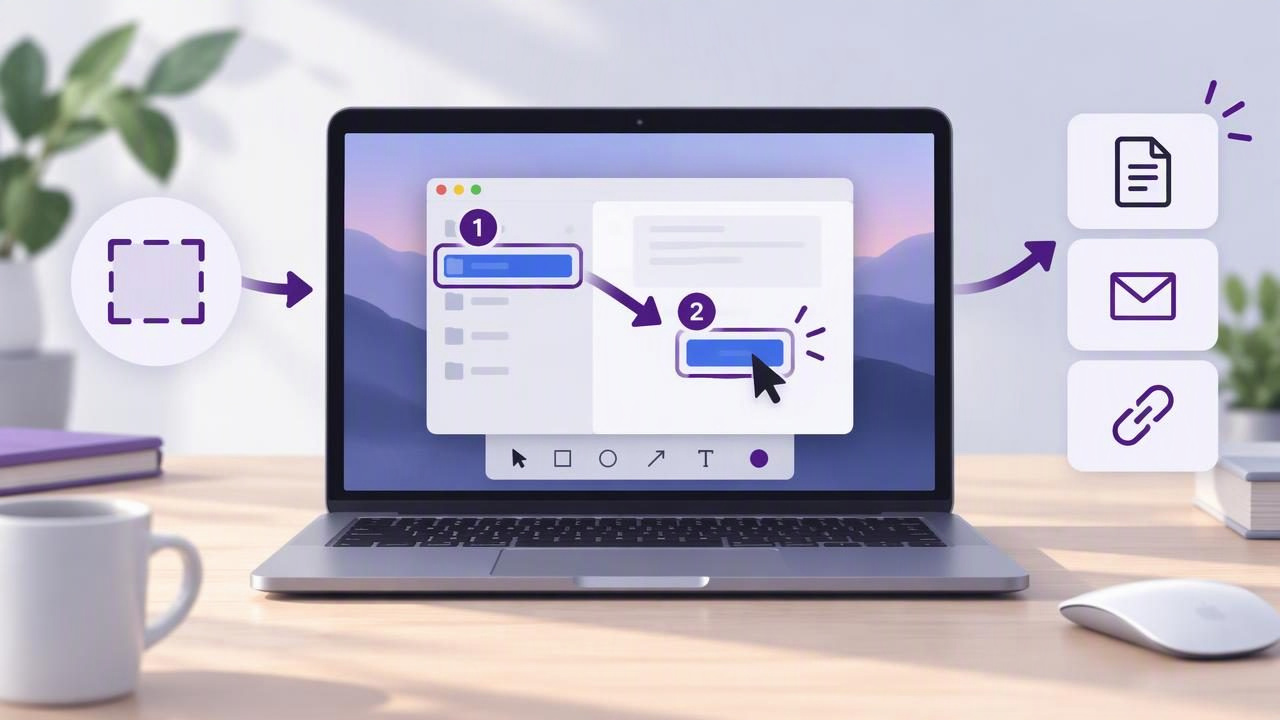
Good instructions help people complete a task without guessing what to click, where to look, or what should happen next. A well-annotated screenshot can make those details easier to understand than several paragraphs of explanation. The key is to capture the right screen, add only the annotations that clarify the action, and arrange the images in a logical order.
A screenshot annotation tool for better step-by-step instructions should make it simple to capture a region or full display, mark important details, and prepare an image for sharing. This guide walks through a repeatable Mac workflow for tutorials, onboarding documents, support replies, and bug reports.
Why annotated screenshots improve instructions
Written directions are useful for describing context, but they can be hard to follow when a screen contains many similar buttons or fields. An annotated image connects an instruction to the exact interface element it describes. Readers can scan the picture first, then use the text to understand what to do.
Visual steps are especially helpful when instructions need to show:
- Where to find a menu, control, or setting.
- Which order to follow when completing a multi-part task.
- What information to enter, or what result to expect.
- Which area of an interface is relevant to a problem.
Annotations should support the explanation rather than compete with it. Too many arrows, labels, colors, or decorative shapes can make a screenshot harder to read. The goal is not to mark everything; it is to make the next action obvious.
Plan the steps before you capture
Start by completing the task yourself and noting the decisions a reader must make. A short outline helps you avoid capturing redundant screens or discovering halfway through that an important state is missing. For each step, write down the action and the visual evidence that would help someone perform it.
- Define the starting point. Show the page, window, or app state the reader should see first.
- Separate actions. Give each screenshot one main purpose, such as opening a menu or selecting a setting.
- Include useful outcomes. If a change should produce a confirmation or visible result, capture it.
- Check for sensitive details. Look for names, email addresses, account data, or private notifications before sharing.
Not every instruction needs a screenshot for every click. Combine simple actions when the sequence is obvious, but create a separate image when the interface changes significantly or when readers might lose their place.
Capture a useful view on Mac
Choose the capture area to match the task. A region capture is useful when one dialog or control is the focus. It reduces surrounding clutter and keeps the reader’s attention on the relevant detail. A full-screen capture can be more appropriate when the location of a feature depends on the wider app layout or when the instructions compare multiple areas.
Before capturing, arrange the window so the relevant controls are visible. Close unrelated panels if they distract, but keep enough surrounding interface to establish context. If a menu must be shown, capture it while open. If a process involves several screens, use consistent window sizing so the images feel like parts of one guide.
Readable screenshots start with readable source material. Avoid shrinking the app window until labels become tiny, and make sure the pointer does not cover the control being discussed. For a tutorial, capture the actual interface state rather than a screen that only resembles the reader’s likely view.
Annotate each screenshot with a clear visual hierarchy
Once captured, add the smallest set of marks that explains the action. A good annotation makes the important element easier to find without obscuring the interface itself.
- Arrows direct attention toward a control, field, or result. Keep the arrowhead close to its target and avoid crossing other important details.
- Shapes such as rectangles or circles outline an area. Use them to frame a control without covering its label.
- Text provides brief context, such as “Choose Preferences” or “Paste the code here.” Keep wording concise and use a consistent style.
- Numbered step markers show sequence when multiple actions appear in one image. Place numbers beside the relevant targets and explain them in the accompanying text.
- Blur can obscure private information that is not needed to understand the task. Review the image afterward to make sure no sensitive detail remains visible.
Use contrast so marks stand out against the image, but avoid relying on color alone. A reader may have low vision, may view the guide on a small screen, or may print it without color. Pair a number or label with a color cue where practical.
Keep annotation styles consistent across the whole guide. If arrows are one color and numbered circles have a particular appearance in the first image, repeat those choices in later images. Consistency reduces the effort required to interpret each new screenshot.
Make the sequence easy to follow
Order images the way a reader experiences the task. Numbered markers can make the order clear within a screenshot, while captions or short paragraphs explain what happens between images. Do not make readers infer whether a number refers to the order of clicks, the order of images, or a separate note.
A practical format for each step is:
- Action: State what the reader should do.
- Visual cue: Point to the control or area that matters.
- Expected result: Explain what should appear afterward.
For example, a settings guide might say, “Open the account menu, then choose Settings.” The screenshot can use an arrow to identify the account menu and a numbered marker to show the next selection. A following image can show the settings page with the relevant tab outlined. This keeps each image focused while preserving the full sequence.
Write instructions for someone who has not seen the process before. Replace vague phrases such as “click here” with the name or location of the control. If a button label changes between versions, describe its purpose as well as its visible text.
Choose a screenshot annotation tool that fits the workflow
For a regular documentation workflow, look beyond the number of editing features. Consider whether the tool can capture a selected region and the full display, add arrows, shapes, text, blur, and numbered steps, and then copy or save the result without unnecessary detours.
Also consider how the app handles your images. Some tasks involve customer records, internal dashboards, or unreleased product screens. A local-first workflow can keep captures and recent history on the Mac by default, while an optional cloud destination gives you control when sharing is needed. Check whether uploads happen only when you choose them, and understand where exported files will be stored.
The best tool is the one that supports your actual process. If you only need an occasional crop, a built-in capture option may be sufficient. If you create tutorials or support documentation often, an annotation app can save time by putting capture, markup, and export in one workflow. Consider the cost model too: a one-time license may suit people who prefer paying once, while subscription products may include services or capabilities they need.
Review before you share
Do a final pass as if you were the reader. Can you identify the first action quickly? Do arrows point to the correct controls? Are labels legible at the size where the instructions will be viewed? Does each screenshot show the expected result, or is another step needed?
Then check privacy and file handling. Blur information that is not needed, and verify that the blur fully covers the details rather than merely drawing attention to them. Copying an image into a document or saving it locally gives you a different handoff from sharing through a cloud drive. Choose the destination intentionally, especially when the material contains work or personal data.
A simple quality checklist
- Each image has one clear purpose.
- The capture includes enough context to locate the feature.
- Arrows, shapes, text, and numbers are readable and consistent.
- Step order and expected outcomes are explained in plain language.
- Private details are removed or obscured before sharing.
- The exported image is saved or shared to the intended destination.
Turn screenshots into instructions people can use
Effective step-by-step instructions combine accurate captures, concise writing, and restrained annotation. Plan the task, choose a region or full-screen view that provides the right context, and use arrows, shapes, text, blur, or numbered markers only where they improve understanding. A quick review for sequence, readability, and privacy can prevent confusion later.
For Mac users who want capture and markup together, Snip Halo is one example of a local-first screenshot app with optional Google Drive sharing. Whatever tool you choose, build a workflow that makes each image clear, deliberate, and easy for the next person to follow.
