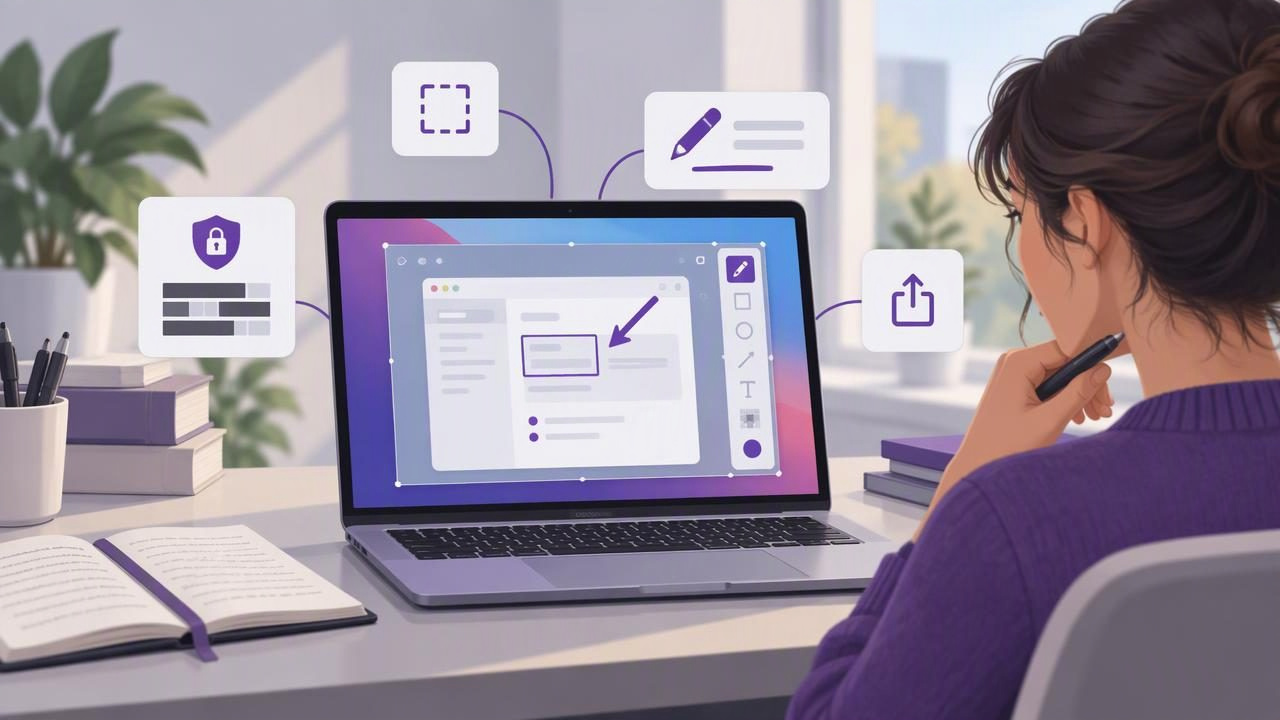
Technical documentation depends on more than accurate sentences. A screenshot can show a setting, button, or error state faster than a paragraph, but only when readers can tell what matters. The right Mac screenshot editor for technical writers makes it straightforward to capture the right view, add clear annotations, and deliver an image in a format your team can use.
Choosing an app is not simply a matter of finding the most tools. A dependable workflow should help you create consistent visuals without adding unnecessary steps, exposing sensitive information, or interrupting your writing process. Here is what to consider when evaluating screenshot editors for tutorials, support articles, release notes, and internal procedures.
Start with the documentation task
Before comparing apps, identify the kinds of images you create most often. A quick screenshot for a bug report has different needs from a carefully prepared image in a step-by-step tutorial. The best choice depends on the work you need to finish, not the length of a feature list.
- Software tutorials: Show where a control is and what to do next.
- Bug reports: Make the problem visible and give developers enough context to reproduce it.
- Release notes: Highlight a changed or newly introduced feature.
- Support documentation: Help readers recognize the screen they should see.
- Internal procedures: Present a sequence of actions consistently across multiple images.
Think about frequency, too. If you create images all day, a few seconds saved on each capture can matter. If you annotate occasionally, quick access and a low learning curve may be more valuable than advanced editing options.
Look for a smooth capture-to-export workflow
A useful editor should let you move from capture to finished image without making you reconstruct the context. Check whether it supports both region capture and full-screen capture. Region selection is helpful when an image should focus on a dialog or interface element. A full-display capture can preserve context when the position of a window or the surrounding application matters.
Consider what happens immediately after a capture. Can you inspect it, annotate it, and then copy or save it without searching through folders? Can you drag the result into a document or issue tracker? For technical writers, these small handoffs are part of the writing workflow. An editor that makes them predictable can reduce friction when preparing many images.
Also check whether the app keeps recent captures available for reference. A local history can help when you need to compare an earlier interface state or recapture a visual. Make sure you understand where that history is stored and whether it can be cleared when a project is complete.
Choose annotations that clarify, not clutter
Annotation tools should make an image easier to understand at a glance. The most practical set for documentation often includes arrows, shapes, text, blur, and numbered step markers. You may not need every effect, but you should be able to choose a clear visual cue for the job.
- Arrows direct attention to a specific control or location.
- Shapes, such as rectangles or circles, outline an area without covering it.
- Text labels add short context when the image alone is ambiguous.
- Blur obscures private or irrelevant details that should not appear in the published image.
- Numbered markers connect an image to an ordered set of instructions.
Consistency matters as much as availability. Use a small, repeatable visual vocabulary: for example, one accent color for callouts and numbered markers, and a consistent size for labels. Avoid covering the interface element readers need to see. If annotations are difficult to read at the final display size, simplify them or split a crowded image into two.
For multi-step procedures, numbered markers can reduce the need for several separate screenshots. But only combine steps when readers can follow their order without confusion. If the interface changes significantly between actions, separate images may be easier to maintain and understand.
Protect readers and product information
Screenshots can reveal names, email addresses, account details, customer records, internal URLs, or unreleased features. A screenshot editor should make it easy to review an image before sharing and apply an appropriate blur or other redaction. Do not assume that cropping alone removes every sensitive detail: check the visible application, notifications, menus, and surrounding desktop.
Understand the app’s data behavior as well as its editing features. Ask whether captures remain on your Mac by default, whether the app uploads images automatically, and what happens when you choose a sharing option. A local-first workflow can be a good fit for confidential documentation because it keeps routine editing separate from online sharing. When collaboration requires cloud access, an explicit upload destination gives you more control than an automatic one.
Before publishing, inspect the exported image itself. Confirm that blur is strong enough, labels are legible, and no extra desktop content slipped into the capture. Follow your organization’s rules for customer data and internal material; an annotation tool is not a substitute for a review process.
Compare apps by workflow, not by feature count
Mac screenshot tools serve different purposes. The table below describes broad workflow positions, not a definitive ranking. Features, platform support, and pricing can change, so check current product details before choosing.
| App | Often considered for | What to evaluate |
|---|---|---|
| CleanShot X | A broad capture and sharing toolkit | Whether its range of features and any cloud workflow match your team’s needs |
| Shottr | A lightweight Mac capture and annotation workflow | Whether its editing tools and capture options cover your documentation tasks |
| Xnapper | Polished screenshots and presentation | Whether its visual styling is useful for product documentation as well as sharing |
| Snagit | More extensive capture and documentation workflows | Whether its broader toolset fits your needs, budget, and preferred workflow |
| Dropshare | Sharing and file delivery | Whether upload and link-sharing features matter more than in-app annotation |
| Monosnap | Capture, annotation, and sharing workflows | How its sharing options align with your privacy and team requirements |
For a CleanShot X alternative, do not compare names alone. Write down your essential tasks, then test each candidate on the same example: capture a window, add a callout, hide a sensitive detail, and move the result into your documentation tool. Notice how many actions the process takes and whether the final image looks consistent with your existing guides.
Test with a real tutorial or bug report
A short trial is more informative than browsing feature pages. Use a realistic screen from your work and complete a small task from start to finish. For example, document a preference change with three steps. Capture the relevant interface, add numbered markers, identify a setting with an arrow, and export the result for your article.
Then test a bug report. Capture the error and enough surrounding context to make the issue understandable. Add a concise label if necessary, blur any private information, and copy or save the image in the format your team accepts. These exercises reveal whether the editor supports both polished instructional visuals and fast, practical feedback.
Evaluate the output at its actual size. A screenshot that looks clear when zoomed in may become unreadable in a help center column. Check contrast, text size, line weight, and whether callouts obscure controls. If a reader must guess what an arrow points to, adjust the annotation or capture a closer view.
Use a simple selection checklist
When you narrow your options, score each app against the requirements that matter to your team. A short checklist can keep the decision grounded in everyday use:
- Does it offer the capture modes you use, including region and full-screen capture?
- Can you add arrows, shapes, text, blur, and numbered steps where needed?
- Can you copy, save, or drag finished images into your normal tools?
- Are capture history and sharing behavior clear and manageable?
- Can colleagues follow the workflow without extensive training?
- Does the license suit the number of Macs and people who need the app?
Finally, consider your payment preference. Some tools use subscriptions or offer optional paid services; others may use a one-time license. Compare the total cost with the features you will actually use, and verify the current terms. Avoid paying for a complex workflow if your team mainly needs clean captures and a small set of annotations.
Make screenshots easier to maintain
Good documentation images are designed for reuse. Keep source captures or project files when your workflow allows it, and store finished images beside the related article or project. Use descriptive filenames and a consistent visual style. When an interface changes, these habits make it easier to find and update the affected screenshots.
The strongest Mac screenshot editor for technical writers is the one that reliably supports your whole process: capture, clarify, protect, and deliver. Prioritize the tasks you repeat, test apps with real documentation work, and choose the simplest workflow that produces readable, trustworthy visuals. For writers who want a local-first Mac workflow with optional Google Drive sharing and a one-time license, Snip Halo is one option to consider alongside the alternatives above.
