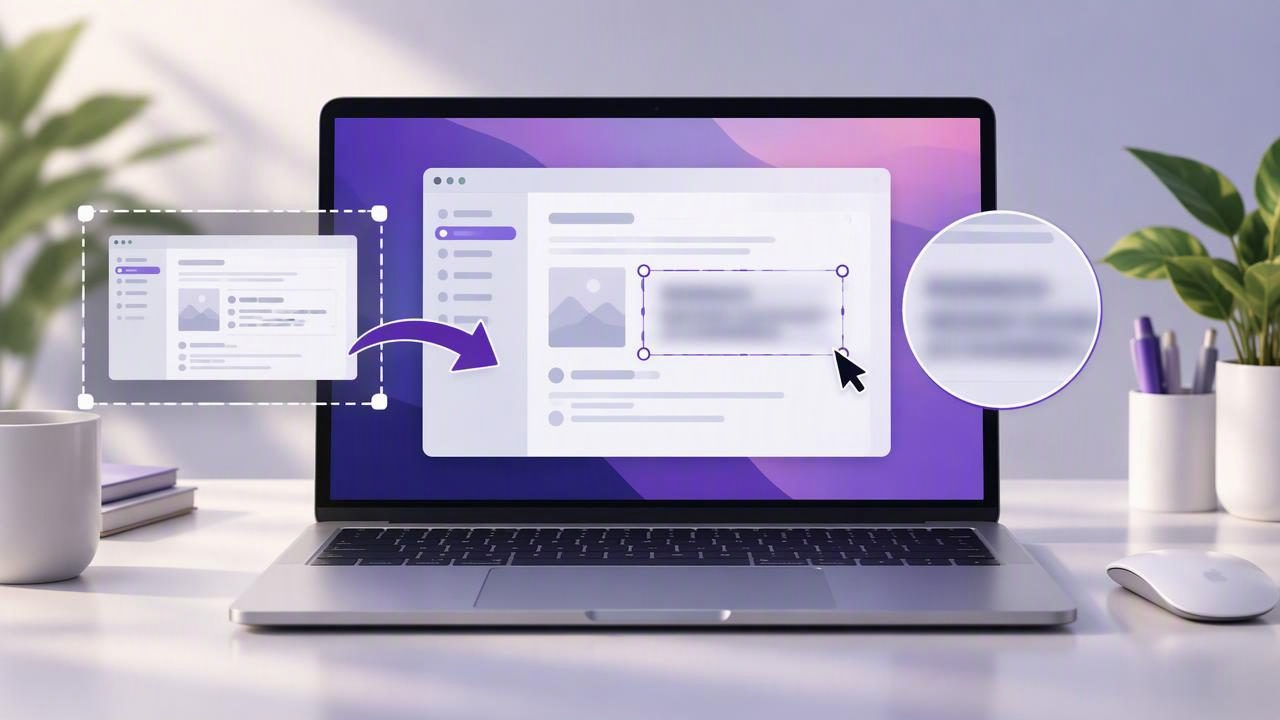
A screenshot can make a bug report, tutorial, or piece of visual feedback much easier to understand. But screenshots can also reveal private details: an email address in a browser tab, a customer name in a dashboard, or a notification in the corner of your display. Knowing how to capture and blur screenshots on Mac helps you share the useful parts without exposing the rest.
This guide covers macOS capture shortcuts, a reliable annotation and blurring workflow, and practical checks to make before you share an image. The goal is not simply to hide information; it is to produce a screenshot that stays clear, useful, and appropriately private.
Why blur a Mac screenshot?
Blurring is useful when a detail is visible but not needed by the person viewing your screenshot. You might obscure personal information in a bug report, hide a private message in a training guide, or mask account details in a product demo. It can also reduce visual clutter around the area you want someone to notice.
Blur only what needs protection. If a detail is important to understanding the issue, consider replacing it with a clearly labeled example instead. For sensitive information that must not be recoverable, use a solid, opaque cover rather than relying on a soft blur.
Capture a region or full screen on Mac
macOS includes built-in screenshot shortcuts, so you can choose the right starting image before opening an editor:
- Shift-Command-3: Capture the full display.
- Shift-Command-4: Select a region by dragging across the screen. Press the space bar after starting the shortcut to capture a window.
- Shift-Command-5: Open the screenshot controls, where you can choose a window, selected portion, full display, or screen recording.
For most annotated bug reports and visual feedback, a region capture is the best option. It keeps the recipient focused on the relevant control or error and reduces the chance of including unrelated information. Choose a full-screen capture when the surrounding layout, app context, or sequence of windows matters.
Before you capture, close unrelated windows and dismiss notifications. Check the menu bar, browser tabs, and visible app content for personal details. If you use the screenshot controls, you can also adjust where captures are saved. A tidy capture is faster to annotate and safer to share.
A reliable workflow to capture and blur screenshots on Mac
- Frame the image. Select the smallest area that still gives the viewer enough context. Include the relevant label, button, or error message, but exclude unrelated conversations and account information.
- Inspect for sensitive details. Look for names, email addresses, customer records, access tokens, notifications, and information in background windows. Do not assume the obvious error is the only thing visible.
- Blur or cover private areas. Use a screenshot editor with a blur tool for details that can be softened without harming the explanation. Use an opaque shape for information that must be concealed completely.
- Add clear annotations. Use an arrow, shape, or short text label to point out the issue. Numbered markers can explain a sequence, such as the steps that lead to an error.
- Review the exported image. Open the saved file and inspect it at normal size. Confirm that the hidden information cannot be read and that annotations do not cover essential context.
Keeping capture, annotation, and review in one workflow can reduce missed steps. If you use separate apps, save a working copy before editing and check which version you are about to attach or send.
Blur, cover, or crop: choose the right privacy treatment
These three edits solve different problems. Cropping removes parts of the image outside the selected frame. It is often the cleanest option when private information is near an edge and the remaining screenshot still makes sense. Blur softens a detail while preserving some sense of what is underneath. A solid cover hides it more completely.
| Method | Best used for | Check before sharing |
|---|---|---|
| Crop | Removing irrelevant edges, windows, or page sections | Make sure the crop does not remove context needed to understand the issue. |
| Blur | De-emphasizing incidental details while retaining the overall layout | Use enough blur that text or numbers cannot be made out at full size. |
| Opaque cover | Concealing credentials, personal data, or confidential values | Confirm the cover is fully opaque and remains in the exported image. |
For passwords, authentication codes, payment details, or other highly sensitive information, do not treat a light blur as secure redaction. A viewer may still infer short text from its shape or surrounding context. Prefer cropping or a solid cover, then inspect the final flattened file.
Make screenshot annotations easy to understand
Privacy edits should not make the image harder to follow. Keep arrows close to the element they identify, and avoid crossing them over important text. Use numbered markers when a viewer needs to follow actions in order, such as opening a menu, choosing a setting, and confirming a change.
Short labels usually work better than paragraphs inside an image. Explain the context in the bug report or accompanying message, and let the screenshot show where to look. If you need multiple explanations, consider making separate images rather than crowding one capture with arrows, text, and shapes.
Use consistent colors and sizes across a set of tutorial images. Make sure labels have enough contrast against the background, and check that blur areas are visibly intentional. A clean annotation helps the recipient distinguish protected information from the point you want to highlight.
Common mistakes to avoid
- Blurring too little: Small text can remain recognizable. Zoom in and check the exported image rather than judging only the editing canvas.
- Forgetting surrounding content: A screenshot may expose private details in a tab, notification, sidebar, or window behind the main app.
- Using an editable layer as the only safeguard: Before sharing, export or save the finished image and verify the blur or cover is part of the result.
- Over-annotating: Too many arrows and labels compete with the screenshot. Keep only marks that help someone understand the issue or next step.
- Sharing the wrong file: A folder may contain both the original and redacted version. Give the final file an unambiguous name and attach the reviewed copy.
Choosing a Mac screenshot tool for this workflow
The built-in macOS shortcuts are convenient for capturing a screen or region. If you only need a quick, unedited image, they may be enough. When you regularly blur details, add arrows or text, or prepare numbered instructions, a dedicated screenshot editor can make those steps easier to repeat.
When comparing tools such as CleanShot X, Shottr, Xnapper, Snagit, Dropshare, or Monosnap, focus on your actual workflow rather than feature counts. Check whether the app supports the capture types and annotations you need, how it handles local files, and whether sharing is optional or built into the process. Pricing matters too: compare subscription plans with one-time licenses and consider which model suits how often you use the app.
Privacy-conscious users should look for clear information about where captures are stored and whether uploads happen automatically. A local-first workflow keeps screenshots on the Mac by default, while optional cloud sharing lets you decide when an image leaves your device. Avoid sending confidential captures to any service unless its handling fits your organization’s requirements.
Questions about screenshot blurring on Mac
Can I blur a screenshot with the built-in Mac screenshot shortcut?
The shortcuts capture a screen, window, or selected area. For dedicated blur or redaction, open the capture in an image editor that provides the needed tool. Preview and Markup can help with basic visual edits, but check that your chosen method fully conceals sensitive information before sharing.
Is blur enough to hide private information?
Not always. Light blur can leave short text or numbers recognizable. For credentials and confidential data, crop the information out or cover it with a fully opaque shape, then inspect the exported image.
Should I capture a region or the full screen?
Choose a region when the issue is localized and extra screen content is unnecessary. Capture the full display when the app layout or surrounding context is essential. In either case, review the whole image for details you did not intend to share.
Build a safer screenshot habit
A dependable Mac screenshot workflow has three parts: capture only what is useful, protect information that should not be shared, and review the final file before sending it. That routine makes bug reports more actionable and tutorials easier to follow, without treating privacy as an afterthought.
If you want capture, blur, arrows, shapes, text, and numbered steps in a focused Mac workflow, Snip Halo is one option to consider. Its captures and recent history stay local by default, with Google Drive sharing available when you choose it.
