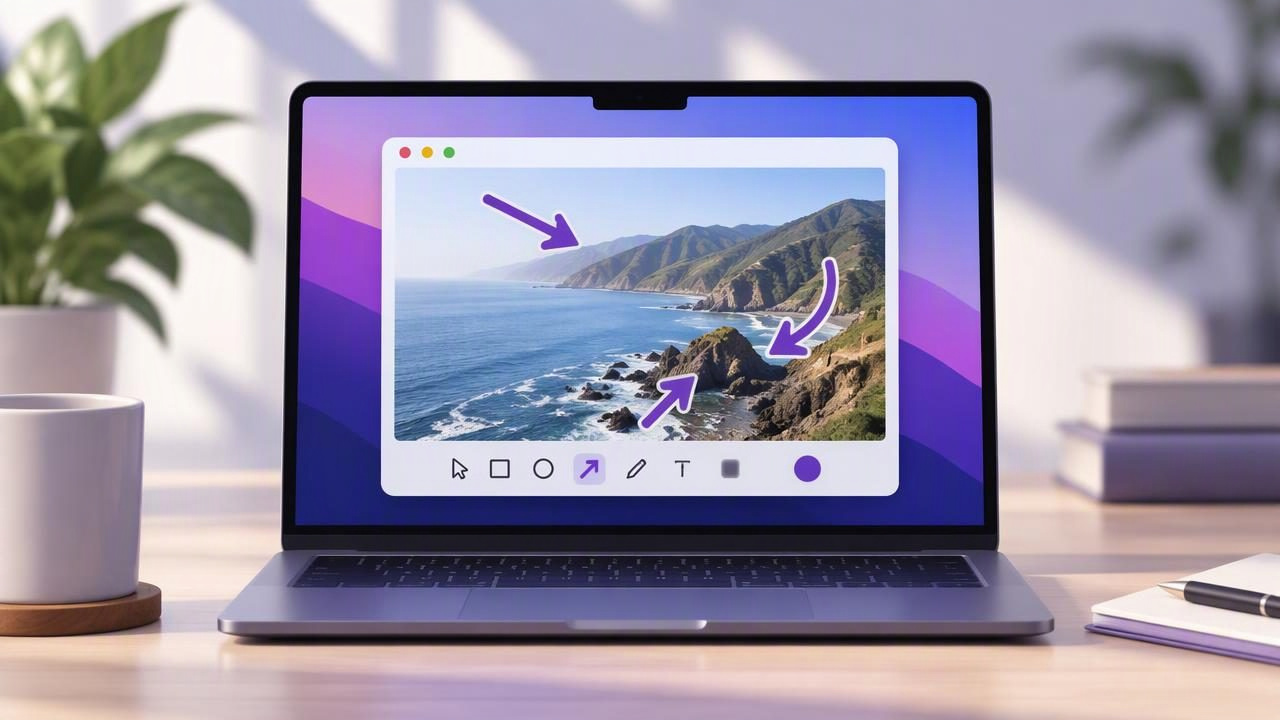
A screenshot can show what is on your screen, but an arrow tells someone where to look. Whether you are documenting a software bug, explaining a setting, or giving design feedback, a well-placed arrow can turn a busy image into a clear instruction.
You can add arrows with built-in Mac tools or a dedicated screenshot app. The best option depends on how quickly you need to capture and annotate, how much control you want over the result, and whether the image contains private information. This guide explains how to add arrows to a screenshot with a Mac screenshot app and how to keep the finished image easy to understand.
Why add arrows to a screenshot?
An arrow creates a visual connection between your explanation and a specific part of the image. Instead of writing “the button in the upper-right corner,” you can point directly to it. That helps readers scan a bug report or tutorial without guessing which control you mean.
Arrows are especially useful when a screenshot includes several similar items, a small error message, or a change that is easy to miss. They can also guide a reader through a sequence, such as opening a menu and selecting an option. Used sparingly, arrows reduce the amount of text needed to explain a screen.
They are not a substitute for context, though. A screenshot should still show enough of the interface for a reader to understand where the highlighted element appears. A close crop with an arrow but no surrounding context may leave people unsure what they are looking at.
Choose a screenshot workflow that fits the task
On macOS, you can take screenshots with system shortcuts, then use an image editor to add marks. A dedicated Mac screenshot app combines capture and annotation in one workflow. It may offer region capture, full-screen capture, arrows, shapes, text, blur, and numbered markers in the same editor.
For a one-off image, a built-in workflow may be enough. If you regularly send bug reports or create visual instructions, having capture and annotation together can save steps. Before choosing a tool, consider whether you need to capture only a selection or an entire display, whether you need to hide sensitive details, and how you want to deliver the image.
| Workflow | Useful when | Things to consider |
|---|---|---|
| macOS capture plus an editor | You annotate screenshots occasionally | You may need to move between apps |
| Dedicated screenshot app | You capture and mark up images often | Check its annotation and privacy options |
| Browser-based editor | You need an editor available on different devices | Review where uploaded images are processed |
How to add an arrow to a screenshot on Mac
The labels and buttons differ between apps, but the process is generally similar. If you are using a dedicated app, capture the screen or region first, then make your annotations before copying or saving the image.
- Capture the relevant area. Use region capture when one window or control is the subject. Choose full-screen capture when the reader needs to see the complete workspace or the position of an item in context. Include only what helps explain the point.
- Select the arrow tool. Look for an arrow, line, or shape control in the annotation toolbar. Some editors let you choose the line style and color before drawing; others let you adjust these after placing the arrow.
- Draw from open space toward the target. Start the tail in a relatively uncluttered area and place the arrowhead close to the control or detail you want to identify. Avoid covering the text, icon, or error message itself.
- Set a readable size and color. Make the line thick enough to remain visible when the image is resized. Choose a color with contrast against the background, but avoid using a shade that blends into nearby interface elements.
- Check the annotation at normal viewing size. A mark that looks clear when zoomed in may overwhelm the image in a chat window or document. Zoom out and check that the arrow points unambiguously to one target.
- Save, copy, or share the result. Use the option that fits your next step: paste into a report, save a file for a tutorial, or share through a service you trust. If the app supports it, keep the original capture available until you have checked the exported image.
For the simplest annotation, one arrow is often enough. If you need to clarify what the arrow means, add a short text label such as “Select this menu” rather than writing a full paragraph over the screenshot.
Make arrows easy to follow
Good annotation is about more than adding a visible mark. The arrow should direct attention without competing with the content. Keep these principles in mind:
- Point to a specific detail. Place the arrowhead near the exact button, field, or message, not vaguely near a whole panel.
- Keep the line clear of important text. Route it through empty space when possible. A line crossing a label can make the screenshot harder to read.
- Use consistent styling. For a set of screenshots, use the same color and line weight for the same kind of instruction.
- Limit the number of arrows. Several crossing lines create visual noise. If the image has many targets, split the explanation into multiple images or use numbered markers.
- Consider the background. A bright arrow may stand out on a dark interface but become difficult to see on a light one. Check contrast before sharing.
Color can carry meaning, but do not make color the only cue. A reader may view the image on a low-quality display or have difficulty distinguishing certain colors. Pair a consistent color with a clear arrowhead, a brief label, or a numbered step when appropriate.
When to use arrows, labels, and numbered steps
Use an arrow when you need to point to one location. Add a text label when the reader also needs to know what to do there, such as “Turn on notifications.” Use numbered step markers when the order matters. For example, a tutorial showing three settings can label the controls 1, 2, and 3, then explain each step in nearby text.
Do not force every instruction into one screenshot. A sequence of two or three focused images can be easier to follow than one crowded image with many arrows and labels. For bug reports, one arrow may identify the error, while a short caption explains what action caused it and what you expected to happen.
Protect private details before sharing
Screenshots can contain names, email addresses, customer records, browser tabs, or notification previews. Review the whole capture before sending it, not just the area marked by the arrow. Crop out irrelevant details where possible, and use a blur or other redaction tool for information that should not be visible.
Check how your screenshot app handles images. Some workflows keep captures and recent history locally, while others upload images to a service or create share links. If privacy matters, look for clear controls over saving and sharing. A local-first workflow can be useful when you want to annotate on your Mac and decide explicitly whether to send a file anywhere. Optional cloud sharing should be a choice, not an assumption.
After exporting, inspect the final image. Confirm that the arrow is present, the crop is correct, and private details are obscured. If you blur information, make sure the result conceals it at the size recipients will see; a weak or transparent effect may not hide text reliably.
Common arrow annotation problems
The arrow covers the item
Move the tail farther away and point the arrowhead at the edge of the target. If the target is tiny, crop closer or add a short label rather than placing a thick line across it.
The screenshot has too little context
Capture a wider region that includes the window title, surrounding controls, or relevant page area. A little context can help another person reproduce a bug or follow an instruction.
There are too many annotations
Remove marks that do not support the main point. If several actions must be explained, separate them into ordered steps or individual screenshots.
The exported image looks different
Check the saved or copied version, since scaling and compression can affect thin lines and small labels. Increase the arrow weight if needed, then export again and review the image at its expected display size.
Build a repeatable Mac screenshot habit
A reliable workflow is simple: capture only the useful area, add the fewest marks needed, review for privacy, and confirm the exported image before sending it. That routine works for bug reports, product feedback, team instructions, and customer support. It also makes screenshots easier to scan because readers can focus on the point instead of decoding the markup.
If screenshot annotation is part of your regular Mac work, compare tools based on capture options, editing controls, storage behavior, and pricing—not just the number of features. Snip Halo is one example of a native Mac app that combines region or full-display capture with arrows, shapes, text, blur, and numbered steps, while keeping captures local by default and making Google Drive sharing optional.
