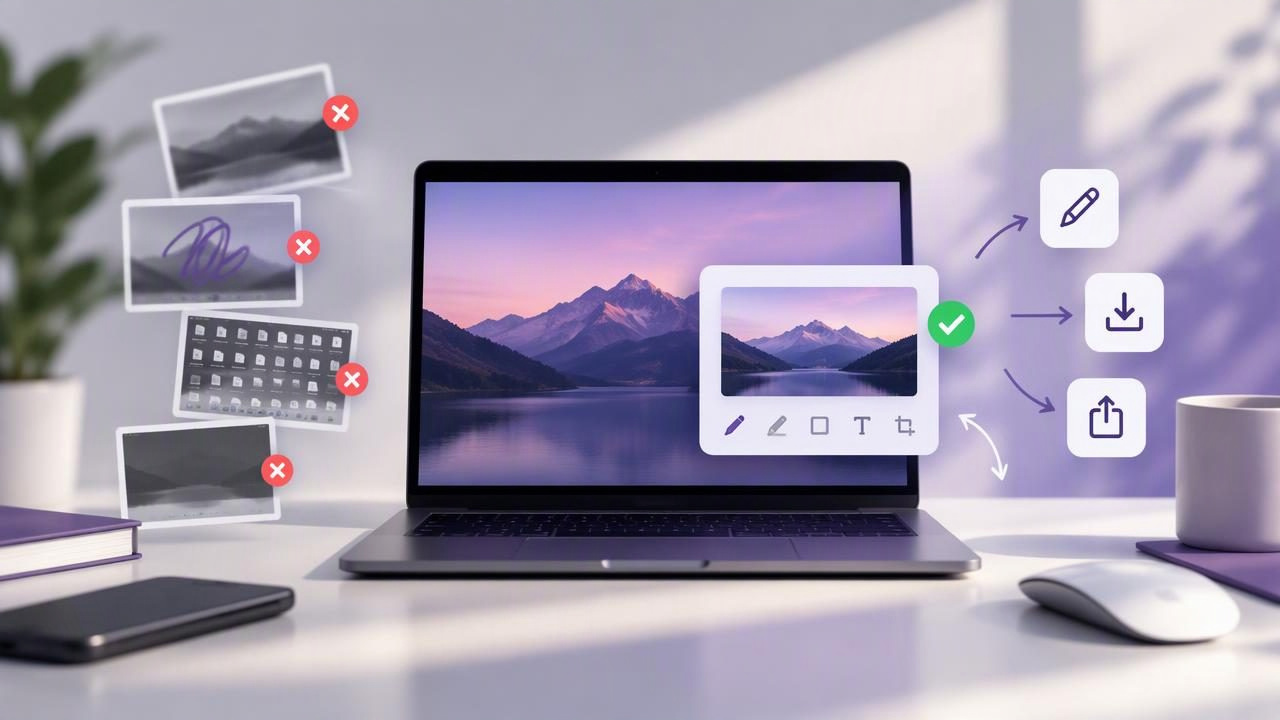
A floating screenshot preview can make it easy to check a capture, mark it up, and move it into a message or document. But small workflow mistakes can lead to lost screenshots, unclear annotations, or accidental sharing. Knowing how the preview behaves—and when to use it—helps you get more from macOS screenshots without adding unnecessary steps.
This guide covers common floating screenshot preview mistakes to avoid, with practical tips for bug reports, tutorials, visual feedback, and everyday screen captures. Whether you use the built-in macOS screenshot controls or a dedicated screenshot app, the goal is the same: create an image that is clear, saved where you expect, and shared only when you intend to share it.
What is the floating screenshot preview on Mac?
When you take a screenshot with macOS, a small thumbnail may appear near the corner of your screen. This floating thumbnail is a temporary preview. You can click it to open basic editing options, drag it into a compatible app, or wait for it to disappear while macOS saves the capture to its configured location. It is not the same as a persistent screenshot editor or a cloud-sharing service.
The preview is useful for quick actions, but its temporary nature can be confusing. Your next step depends on what you need: copy an image into a chat, save a file for later, or add detailed arrows, labels, blur, or numbered steps. Treating those as separate tasks makes the workflow more reliable.
1. Assuming the preview is the saved screenshot
The thumbnail is a shortcut to the capture, not proof that you have filed the image somewhere easy to find. macOS saves screenshots according to your screenshot settings, which may point to the Desktop, Documents, Clipboard, or another location. If you only interact with the preview, you may later be unsure where the original file went.
Better approach: Before a series of captures, check the screenshot options and confirm the save destination. If you need a file you can attach or archive, use the save action and choose a clear location. For one-off sharing, dragging or copying may be faster—but confirm that the receiving app actually accepted the image.
2. Waiting too long before using the thumbnail
The floating preview is temporary. If you turn to another task and expect it to remain available, it may disappear before you can open or drag it. This is especially easy to do during a screen recording, live support session, or fast bug-reporting workflow.
Better approach: Decide what you will do immediately after capture. Click to inspect, drag into the destination, or let macOS save the file for later. If you need to annotate several images carefully, a dedicated editor or a saved-file workflow is more dependable than relying on a thumbnail to stay on screen.
3. Dragging the preview without checking the destination
Dragging a thumbnail can feel like the fastest way to add a screenshot to an email, chat, or document. However, not every app handles a dragged image the same way. It might insert the image, attach it as a file, or ignore the drop. A quick gesture can also place the screenshot in the wrong conversation or document.
Better approach: Check the destination before you drop, then look for a visible attachment or image preview afterward. For sensitive or important material, save the capture first and attach it deliberately. This small confirmation step can prevent embarrassing mistakes and make it easier to resend the original if needed.
4. Capturing before cleaning up the screen
A preview helps you inspect a capture, but it cannot make distracting content disappear automatically. Notifications, unrelated windows, personal details, and unfinished interface states can all end up in a screenshot. In a tutorial or client update, those distractions can make the important point harder to understand.
Better approach: Arrange windows and close irrelevant panels before capturing. Turn on a suitable focus mode if notifications could appear. For a region capture, frame only the relevant area while leaving enough context for the viewer to understand what they are seeing. Review the image before sending it.
5. Using a full-screen capture when a region is clearer
Capturing the entire display can preserve useful context, but it can also shrink the key detail among menus, tabs, and other windows. The recipient may have to guess where to look. On the other hand, cropping too tightly can remove the page title, control label, or surrounding state needed to reproduce a problem.
Better approach: Match the capture to the task. Use a region capture to focus on a specific control or error. Use a full-screen capture when the overall layout, multiple windows, or sequence of visible states matters. Ask yourself whether someone unfamiliar with the screen can locate the issue without extra explanation.
6. Sending an unannotated screenshot when direction matters
A plain screenshot records what was on screen, but it does not always explain what the viewer should notice. A bug report may need to identify the failing control; a tutorial may need to show a sequence; visual feedback may need to distinguish a proposed change from the current design.
Better approach: Add only the annotation that helps the viewer act. An arrow can point to a specific element, a short text label can clarify the issue, and numbered markers can show steps in order. Shapes can outline an area, while blur can conceal private information. Keep marks legible and avoid covering the content they refer to.
7. Treating blur as a guarantee of privacy
Blur is useful for reducing the visibility of names, email addresses, account numbers, or other sensitive details. But a quick blur can be too weak, miss nearby information, or leave data visible in a notification or browser tab. A screenshot may also contain private details outside the part you originally intended to share.
Better approach: Inspect the entire image at a useful zoom level. Blur or cover every sensitive area, including surrounding context, and check that the text cannot be read. When exposure would be serious, remove the information from view before capture instead of relying only on post-capture editing.
8. Forgetting to save an annotated version
Opening the preview and making a quick change can create a false sense that the final image is safely stored. Copying, dragging, and exporting are different actions, and the destination may keep only the flattened image. If you later need to revise an arrow or correct a label, you may have to start again.
Better approach: Choose whether you need a reusable working copy or just a final image. Save the finished capture with a meaningful filename when it will be part of a report, tutorial, or project archive. If your editor keeps annotations editable, retain that version until review is complete, then export or copy the version you want to share.
9. Sharing before checking where the image will go
A screenshot can reveal more than the visible issue: account details, file names, customer information, or internal messages may appear elsewhere on screen. Sharing through a service also has different privacy implications from saving locally or pasting into a private conversation. A floating preview itself does not tell you what permissions a destination will apply.
Better approach: Review the capture, choose the destination intentionally, and verify access settings when using cloud storage. For a local-first workflow, keep captures on your Mac unless you decide to share them. Optional sharing through a service such as Google Drive should be a deliberate choice, not an automatic assumption.
10. Expecting the preview to replace a complete screenshot workflow
The built-in thumbnail is convenient for quick captures, but it may not provide everything a repeat workflow needs. Detailed annotation, consistent numbered steps, a searchable history, or direct sharing choices may call for a separate tool. Switching between several apps for capture, editing, saving, and sending can also create extra opportunities for errors.
Better approach: Choose tools based on the work you do most often. For occasional screenshots, the macOS preview may be enough. For recurring bug reports or tutorials, look for region and full-screen capture, useful annotation controls, and a clear save or copy workflow. Compare privacy, editing, and pricing—not just the number of features.
A reliable Mac screenshot routine
A short routine can prevent most preview-related problems. Before capture, tidy the screen and decide whether you need a region or the full display. After capture, inspect the image, add only necessary arrows, shapes, text, blur, or step markers, and confirm the result is readable. Then choose one clear action: copy, save, drag, or share.
- Prepare: Remove distractions and check for private information.
- Capture: Choose a region or full-screen image that includes enough context.
- Review: Confirm the important detail is visible and the framing makes sense.
- Annotate: Guide attention without overcrowding the image.
- Deliver: Verify the file or image reached the correct destination.
For repeated work, consider whether your chosen screenshot app keeps captures local by default, avoids automatic uploads, and makes saving or sharing predictable. A focused Mac tool such as Snip Halo is one option for workflows that need capture and annotation without a subscription; compare it with alternatives based on your own requirements.
Make the preview work for you
The floating screenshot preview is most useful when you understand its limits. It can speed up a quick review or transfer, but it does not replace careful framing, privacy checks, annotation, and deliberate file handling. Avoiding these common mistakes makes screenshots easier to follow and safer to share—whether you are documenting a bug, teaching a process, or giving visual feedback.
