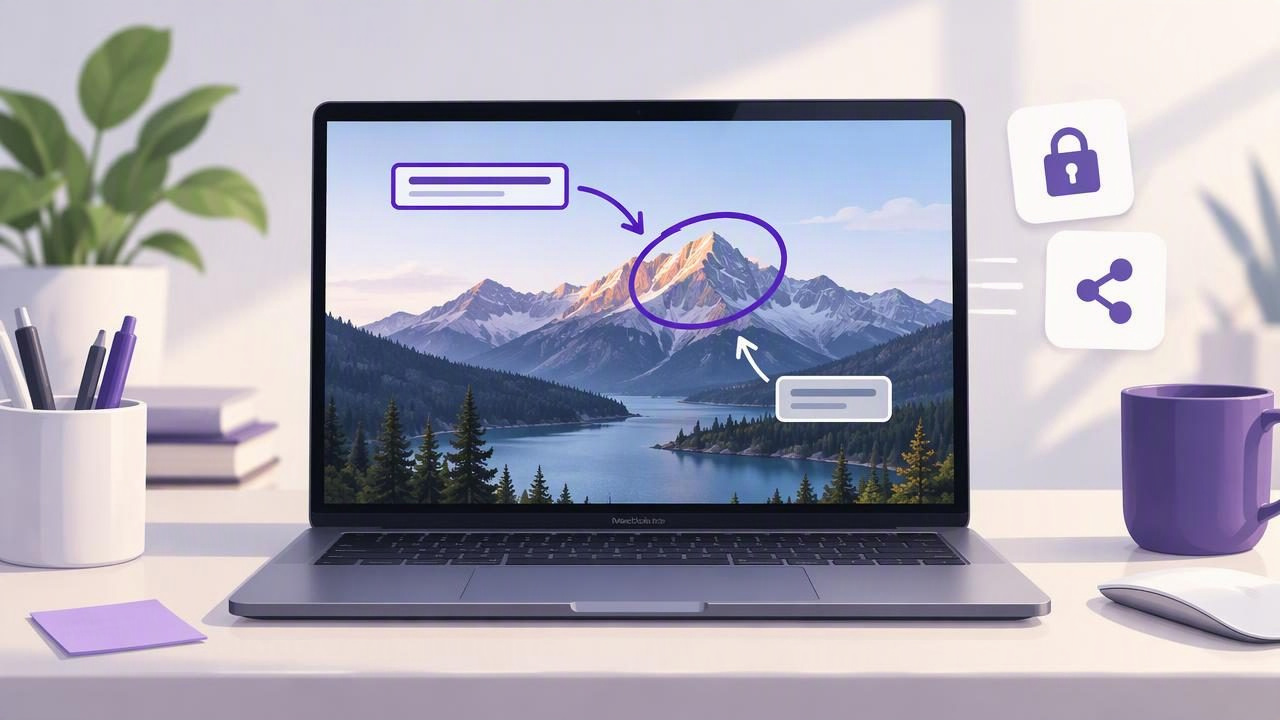
Adding a few words to a screenshot can turn a confusing image into a useful instruction, bug report, or piece of visual feedback. The challenge is finding a Mac screenshot annotation tool that makes it easy to capture the right area, place readable text, and share the result without adding unnecessary steps.
The best screenshot annotation tool to write text on a screenshot is not necessarily the one with the longest feature list. It is the one that fits your workflow: capture, explain, protect sensitive details, and deliver the image in a format people can use. This guide covers what to look for, how to annotate effectively, and how several Mac screenshot tools differ.
What makes a good screenshot text tool?
Before choosing an app, consider the whole process rather than the text feature alone. A capable tool should let you capture a region or full display, add text directly to the image, and then copy, save, or share the finished result. A short path from capture to output makes it more likely that annotations stay current and accurate.
- Fast capture: Select a region for a focused issue or capture the full screen when context matters.
- Readable text controls: Look for adjustable size, color, and placement so labels stand out without covering important details.
- Useful companion markup: Arrows, shapes, blur, and numbered markers can clarify what text alone cannot.
- Flexible output: Copying to the clipboard is handy for chat; saving a file works better for records and documentation.
- A workflow you trust: Know where screenshots are stored and whether sharing is automatic or something you initiate.
Also check whether the app suits your Mac and macOS version, how it is licensed, and whether it depends on an account or recurring payment. A lightweight one-time purchase may be a better fit for occasional annotations than a larger suite, while teams with broader capture and collaboration needs may value additional services.
How to write on a screenshot on Mac
A reliable annotation workflow starts with a clear capture. On Mac, the built-in screenshot controls can capture a selected area or display. You can use those captures with an image editor, or choose a dedicated screenshot app that brings capture and markup together. In either case, work from the least cluttered image that still gives the reader enough context.
- Capture the relevant view. Include the control, message, or page section the reader needs to see. Avoid capturing unrelated windows or excess desktop space.
- Add a short text label. Explain the point rather than repeating visible interface text. For example, “Choose Export” is more useful than placing a label that merely says “Export” over an already obvious button.
- Position text beside its target. Keep labels away from important content and make the relationship clear with proximity or an arrow.
- Check contrast and size. Read the annotation at the size it will appear in a message or document. Increase the text size or use a contrasting background if it blends into the screenshot.
- Review and export. Confirm that the text is not clipped, the image is still legible, and any private information is handled before copying or saving.
For a one-off screenshot, a single text box may be enough. For a multi-step task, use concise labels such as “Open Settings” and “Select Notifications,” then connect each label to the right location with a marker. The image should support the explanation, not become a wall of text.
Make screenshot text easy to understand
Good annotation is a design decision as much as an editing action. Keep sentences short and use familiar words. If a screenshot is intended for someone who is not part of your team, avoid unexplained abbreviations and internal product names. One clear instruction per label is easier to follow than a paragraph squeezed into a small area.
Use a visual hierarchy. A larger heading can identify the issue, while smaller labels point to individual controls. Keep font sizes, colors, and shapes consistent across a set of screenshots. When text sits on a busy image, place it in open space or give it a solid, contrasting fill if the app supports one. Do not shrink text just to fit a long explanation; rewrite the wording or split the instruction into separate images.
Before sending, zoom out and look at the image as a recipient would. If the text competes with the interface, overlaps a key detail, or relies on color alone to communicate meaning, revise it. A brief caption in the accompanying message can carry background information that does not belong inside the image.
Combine text with arrows, shapes, blur, and steps
Text works best when paired with the right visual cue. Use an arrow to connect a label to a precise target. Use a rectangle or circle to outline an area without obscuring it. A numbered step marker is useful when the order of actions matters, such as a setup guide or repeatable support instruction.
Blur has a different job: it hides or de-emphasizes details. Use it to cover information that should not be shared, such as an email address or account identifier, while leaving the relevant interface visible. After applying blur, inspect the exported image. Make sure the sensitive detail is genuinely unreadable and that the blur has not hidden context needed to understand the issue.
Keep the number of marks under control. Too many colors, arrows, boxes, and labels can make a screenshot harder to interpret than the original. A useful rule is to give each annotation one purpose and remove anything that does not help the reader act or understand.
Choosing among popular Mac screenshot tools
Mac screenshot apps vary in emphasis. Some focus on fast capture and annotation; others offer a broader set of recording, editing, organization, or sharing features. The best option depends on what you actually do with screenshots. Features and plans can change, so check each product’s current documentation before deciding.
| Tool | What to consider |
|---|---|
| CleanShot X | A broader screenshot workflow may suit users who want multiple capture and productivity features alongside annotation. |
| Shottr | Consider it if you want a Mac-focused capture and editing workflow; compare its current markup controls with your needs. |
| Xnapper | Review whether its presentation-oriented options match the way you prepare polished screenshots. |
| Snagit | May be worth evaluating when screenshot work is part of a wider documentation or visual communication process. |
| Dropshare | Compare its sharing workflow with apps that focus more directly on annotating before you send. |
| Monosnap | Check its current capture, annotation, and sharing options against your preferred Mac workflow. |
This is not a ranking: an app that is ideal for a team sharing many files may be more than an individual needs for occasional bug reports. Compare how quickly you can add text, whether the markup tools are comfortable, where files go, and whether the price model suits you. If recurring costs are a concern, include one-time Mac software in your comparison.
Privacy and sharing matter, too
Screenshots often contain more than the detail you meant to capture: account names, browser tabs, messages, or customer data may appear at the edges. Capture only what is necessary, review the image before sharing, and blur or remove sensitive information. Do not assume that an annotation app’s sharing behavior matches your expectations; check whether uploads are optional, automatic, or tied to a particular service.
A local-first workflow keeps captures and recent history on your Mac by default, with sharing started by you when needed. That can be useful when preparing internal bug reports or working with confidential material. For cloud delivery, understand which account and destination are used. For example, a tool may let you share through your own Google Drive rather than upload to a separate service. Choose based on your organization’s policies and the sensitivity of the image.
Match the tool to the job
For a bug report, show the error and add a brief label that describes what happened. An arrow can point to the affected control, while a short caption records the expected result. For a tutorial, use numbered steps consistently and capture enough surrounding interface to orient the reader. For client feedback, keep comments specific, constructive, and close to the relevant design element.
In each case, the best tool is the one that helps you produce a clear image without creating a complicated process. A large feature set is valuable only if you use it. If your routine is region capture, text, arrows, occasional blur, and copying the final image, prioritize those actions in your evaluation.
A quick checklist before you share
- Does the capture include enough context and exclude irrelevant areas?
- Can someone understand each text label without extra explanation?
- Are arrows, shapes, and numbered steps consistent and easy to follow?
- Have you checked for private information and confirmed where the image will go?
- Is the saved or copied result readable at its intended size?
There is no universal winner for every Mac user. Test the capture and annotation flow you expect to use most, then weigh simplicity, privacy, sharing, and cost together. For a focused local-first workflow with region or full-display capture and common markup tools, Snip Halo is one option to include in that comparison.
