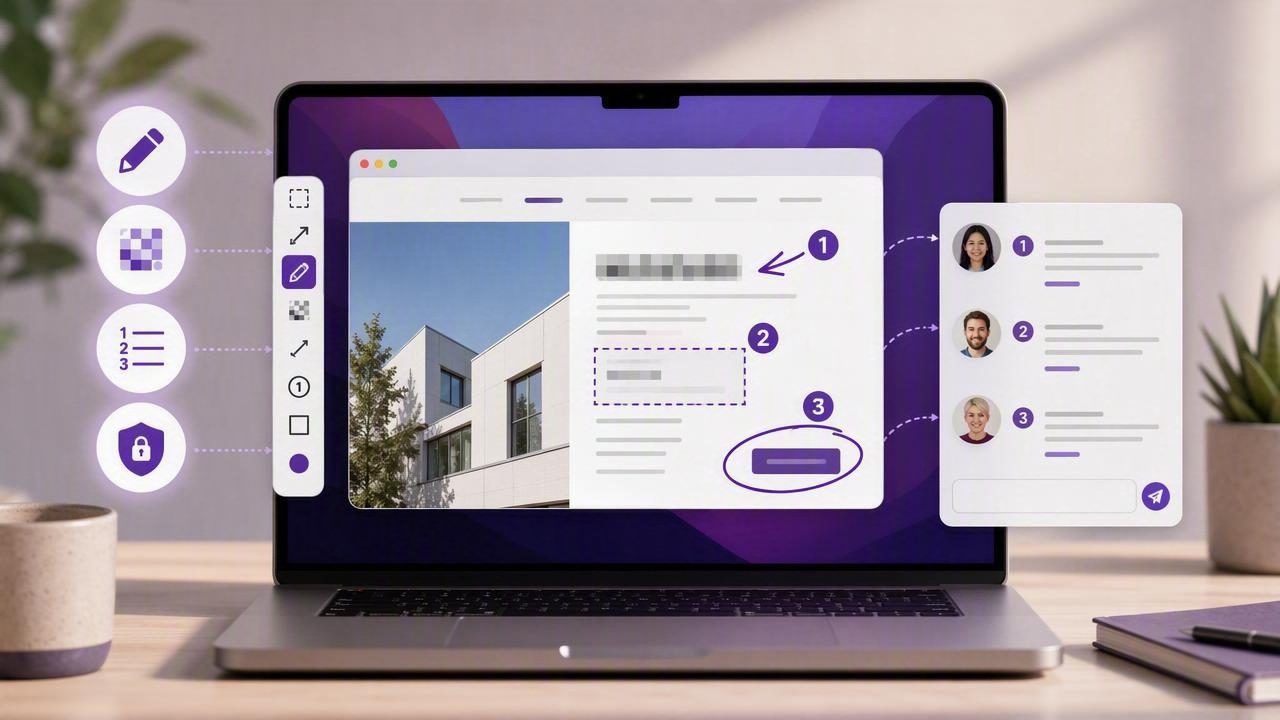
Clear client feedback is one of the fastest ways to keep creative projects moving. Whether you design websites, build software, manage marketing campaigns, edit videos, or review documents, a well-marked screenshot can prevent long email threads and vague comments such as “move this over a little” or “the button looks wrong.”
The best Mac screenshot app to send visual client feedback should make it easy to capture exactly what matters, annotate it clearly, protect sensitive information, and share it through the channel your client already uses. The goal is not simply to take a screenshot. It is to create visual instructions that are easy to understand and act on.
This guide explains what to look for in a Mac screenshot workflow, which annotation features matter most, and how to use screenshots to make client reviews more productive.
Why Visual Client Feedback Works Better Than Text Alone
Text-only feedback often requires interpretation. A client may refer to “the header,” but a page can contain several headings, navigation items, banners, and calls to action. Even when everyone is working from the same screen, written descriptions can introduce uncertainty.
A screenshot creates shared context. It shows the exact page, app window, design state, or interface element being discussed. Adding an arrow, text note, or numbered step removes even more ambiguity.
Visual feedback is especially useful when reviewing:
- Website designs, landing pages, and e-commerce checkouts
- App interfaces and product prototypes
- Bug reports and QA test results
- Social media graphics and ad creative
- Presentation slides, spreadsheets, and reports
- Video edits, image layouts, and document revisions
Instead of writing three paragraphs to explain a small layout adjustment, you can capture the relevant region, draw an arrow, and add a note such as “Increase spacing between these two cards by 16px.” That format is faster to create, easier to scan, and less likely to be misunderstood.
Essential Features for Sending Better Screenshot Feedback
macOS includes built-in screenshot shortcuts, which are useful for basic captures. However, client communication usually benefits from a dedicated workflow that supports capture, markup, organization, and flexible sharing.
When evaluating a Mac screenshot app, focus on the features that reduce friction between noticing an issue and communicating it clearly.
1. Fast Region and Full-Screen Capture
Most feedback does not require showing an entire desktop. A region capture tool lets you select only the relevant panel, navigation menu, form field, or visual component. Tighter screenshots help clients focus on the requested change instead of searching through unrelated interface details.
Full-screen capture is still valuable when context matters. For example, a full display screenshot can show how a browser window, design tool, and preview environment interact during a bug report. The best workflow supports both options without forcing you through multiple menus.
2. Arrows, Shapes, and Text Annotations
Annotation tools turn a raw capture into an actionable review item. At a minimum, look for arrows, rectangles, circles, lines, and text labels. These tools help separate observation from instruction.
- Arrows point to a precise control, spacing issue, or visual error.
- Shapes outline a group of elements or an area requiring attention.
- Text labels explain the requested revision or provide a short decision.
- Highlights can draw attention without covering important content.
Choose annotation options that remain readable when a screenshot is viewed in a chat app, project management platform, or email attachment. Thin arrows and tiny labels may look fine on a high-resolution Mac display but become difficult to read after resizing.
3. Numbered Step Markers
Numbered markers are particularly helpful when a screenshot contains multiple comments. Rather than placing long text blocks directly on the image, add numbered steps and reference them in a concise message.
For example, a website feedback screenshot could include:
- Update the headline to match the campaign message.
- Replace the current product image with the approved version.
- Change the button copy from “Learn More” to “Start Free.”
This approach keeps the image clean while giving clients, designers, and developers a clear order of operations. It also makes it easier to confirm that every item was addressed in a later revision.
4. Blur and Redaction for Sensitive Information
Client screenshots can easily contain private details: email addresses, customer names, account balances, API keys, internal analytics, support tickets, or unpublished product information. Before sending any image externally, inspect it for details that should not leave your device.
A blur tool is useful for hiding information quickly, especially in bug reports or dashboard reviews. For truly sensitive data, consider whether cropping the area out entirely is safer than blur. A careful screenshot habit protects both your client relationship and your own business.
5. Copy, Drag, Save, and Share Options
Different clients work in different places. Some prefer email, others use Slack, Microsoft Teams, Notion, Asana, Trello, ClickUp, or Google Drive. A screenshot app should fit these existing communication habits.
Copying directly to the clipboard is ideal for quick chat feedback. Dragging a finished image into another app is useful when attaching screenshots to tickets or documents. Saving a file works well when you need a local project record. Optional cloud sharing can be convenient, but it should be intentional rather than automatic.
How to Create a Client-Ready Screenshot in Five Steps
A repeatable process helps you send feedback that is consistent, professional, and easy to implement.
- Capture only the needed context. Use region capture for a focused design issue, or full-screen capture when the broader workflow matters.
- Remove distractions. Close unrelated tabs, hide private notifications, and crop unnecessary areas before annotating.
- Mark the exact issue. Use one arrow or shape per point whenever possible. Avoid circling half the screen.
- Write specific instructions. Replace “fix this” with a clear outcome, such as “Align this icon with the heading baseline.”
- Send it in the right format. Paste into chat for speed, attach to a ticket for traceability, or save it with the project files for review history.
For more complex requests, pair the screenshot with a short written summary. The image explains where the issue is, while the message explains why it matters and what a successful update looks like.
A Simple Template for Screenshot Feedback
Clients and collaborators respond faster when feedback follows a predictable format. You can use this lightweight template alongside an annotated image:
Area: Pricing section on the homepage
Requested change: Increase contrast on the secondary button text.
Reason: The current text is difficult to read against the background.
Priority: Before the next client review.
This format is more useful than a collection of disconnected comments because it supplies location, action, rationale, and urgency. It also gives the recipient enough information to make an informed implementation decision.
Comparing Mac Screenshot App Workflows
There is no single perfect app for every Mac user. The right option depends on whether your priority is polished annotations, scrolling capture, cloud links, developer documentation, local storage, or a simple one-time purchase.
| Workflow need | Helpful features | What to consider |
|---|---|---|
| Quick client comments | Region capture, arrows, text, clipboard copy | Choose an app with minimal steps between capture and paste. |
| Detailed design review | Shapes, numbered markers, blur, editing controls | Prioritize readable annotation tools and easy revisions. |
| Software bug reports | Full-screen capture, region capture, local files | Make sure sensitive account data can be hidden before sharing. |
| Team documentation | Consistent markup, file naming, export options | Consider how screenshots fit into your knowledge base or tickets. |
| Client privacy | Local-first storage, manual sharing controls | Check whether images upload automatically or remain on your Mac. |
Tools such as CleanShot X, Shottr, Xnapper, Snagit, Dropshare, and Monosnap each approach screenshots differently. Some emphasize capture extras, scrolling screenshots, presentation-style backgrounds, hosted links, or broader screen-recording workflows. Before choosing one, identify the most common point of friction in your current review process.
If your main problem is unclear feedback, prioritize annotation speed and clarity. If your concern is where confidential captures go, prioritize local-first privacy and explicit sharing controls. If you regularly need to document long web pages, scrolling capture may matter more than advanced markup.
Privacy Considerations When Sharing Screenshots
Screenshot sharing can be deceptively risky because images often reveal more than intended. A browser capture may expose open tabs, account identifiers, bookmarks, extensions, or internal URLs. A desktop capture may include notifications, calendar events, and messages.
Before sending visual client feedback, ask three questions:
- Does this image show personal, financial, customer, or internal business data?
- Will this screenshot be stored locally, uploaded to a third-party service, or both?
- Can I control who has access to the shared file or link?
A local-first screenshot workflow is often a strong fit for freelancers, agencies, consultants, and teams that handle confidential client work. It keeps captures on the Mac by default and lets you decide if, when, and where a file should be shared.
Common Mistakes That Make Feedback Harder to Use
- Capturing too much: A full desktop image can obscure the actual issue.
- Using vague labels: “This looks off” does not explain the desired outcome.
- Adding too many colors and shapes: Excessive markup creates visual noise.
- Skipping priorities: Clients may not know which request must be completed first.
- Forgetting privacy checks: Sensitive information can remain visible in the background.
- Sending separate screenshots without context: Include a brief explanation, especially for complex revisions.
The best screenshot feedback is focused, specific, and easy to act on within a few seconds of opening the image.
Choose a Workflow That Makes Feedback Effortless
The best Mac screenshot app to send visual client feedback is ultimately the one that helps you move from observation to clear communication without interrupting your work. Look for fast region and full-screen capture, useful annotation tools, numbered steps, reliable blur options, and sharing methods that match your client workflow.
For Mac users who want a focused, local-first option with annotation tools and optional Google Drive sharing, Snip Halo is one streamlined approach to consider. Whatever tool you choose, building a consistent screenshot feedback process will make reviews clearer, revisions faster, and client communication more confident.
